PolyField Track
A results viewing and display software package for FinishLynx and TimeTronics photo-finish systems. Runs on Windows and Mac as a desktop device linked to your photo-finish results folder.
- PolyField Track
- Overview
- How it works
- Getting started
- The desktop control panel
- Overlays
- Text size & rotation modes
- Browse & restore
- Connecting screens
- The Layout Builder
- Widget reference
- Combined Events points
- Themes, bibs & club abbreviations
- Web views
- FinishLynx & TimeTronics setup
- Networking
- Troubleshooting
- Download & support
Overview
PolyField Track turns your FinishLynx or TimeTronics results into live displays across your venue. One desktop instance watches your results folder and serves a web interface that any device on the network can open — scoreboards, an athlete self-service kiosk, a speed board, and more.
It keeps the operator in control: results only appear once they are saved, ensuring positive validation before display. Multiple saves are supported — so you can show distance-race athletes early, or reveal a race once the top 3 have performances assigned.
How it works
- You run one instance of the desktop app on a computer connected to your photo-finish results folder.
- The app builds a web interface on port 3000. Any device on the same network opens it in a browser — no install needed on the displays.
- Each display registers itself and can be given a layout to show. The number of displays is limited only by your network and the host computer.
- The operator drives what appears — results, overlays (text, screensaver, countdown, records, line view), or a full custom layout.
Getting started
1. Set the results directory
This is the folder FinishLynx or TimeTronics saves results into (LIF, etc.). Click the red button in the top-right corner, “Select Results Folder”. You can change it later with “Change Folder”.
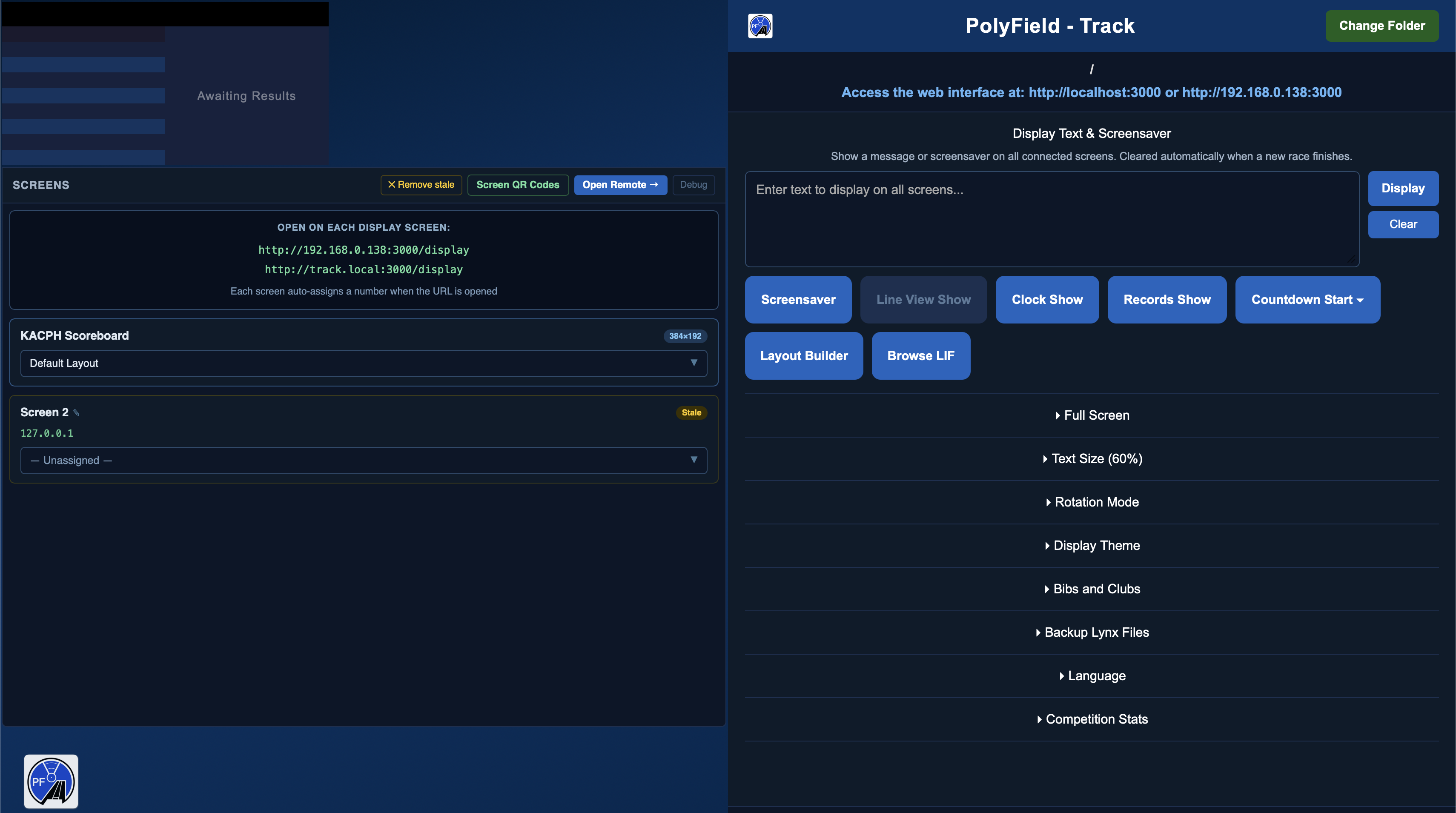
Once set, the web interface builds and the access address is shown at the top of the desktop app (e.g. http://track.local:3000 or http://<your-IP>:3000).
2. Open a display
On each display device, open a browser and go to the address shown, then /display. Each screen that connects auto-assigns a number. See Connecting screens for the QR-code shortcut.
Tip — leave the desktop app on its home screen and drive the displays from there, or from a second device on the web interface. This keeps you in control of the overlays while the results flow automatically.
The desktop control panel
The control panel is the operator’s home. Along the top you set the results folder and see the connection address. The main controls are grouped into a compact button row (which wraps to a second row on narrow windows):
| Control | What it does |
|---|---|
| Text & screensaver | Type a message to show on all screens, or link a graphic. Great for sponsor messages, “meet suspended”, etc. |
| Screensaver | Show a linked image or a chosen saved layout across the screensaver area. If a source is already set, one press toggles it on/off; the ⚙ button re-opens the options. |
| Line View | Push the latest photo-finish image to the displays. Greyed out until photo-finish JPGs appear in the results folder. |
| Clock | Show the running clock full-screen on screens with a clock widget. |
| Records | Show celebratory record cards for athletes flagged with a record. Prev / Next step through the flagged athletes or manual selection. |
| Countdown | Count down to a target time of day. Enter the time and Start; it hides itself at zero. |
| Layout Builder | Open the layout designer (see below). |
| Browse LIF | Re-show any previous result from the monitored folder. |
Overlays
Overlays are things you show on top of (or instead of) the results: text, screensaver, line view, clock, records and countdown. Three important points about how they work:
- You can run several at once. For example a screensaver background with a countdown and a text banner on top. Turning one on no longer turns the others off.
- The widgets decide what shows where. Each display only shows the overlays that its assigned layout contains — so different screens can show different combinations from one desktop.
- A new result clears them all and returns every screen to the results — so live results always take priority.
Screensaver (image or layout)
Choose Image (a linked graphic — sponsor boards, notices) or Layout (any saved layout shown as a full takeover of the screensaver area). Pick the source, then press Display. Once a source is set, the Screensaver button toggles it directly.
Countdown
Counts down to a target time of day, read from each screen’s own clock. Enter the time (e.g. 15:40) and Start. In the Layout Builder you can set the caption (default “Next Event In:”), whether seconds are shown, and the text/font/colour. It hides itself at zero and yields to new results and other overlays.
Records
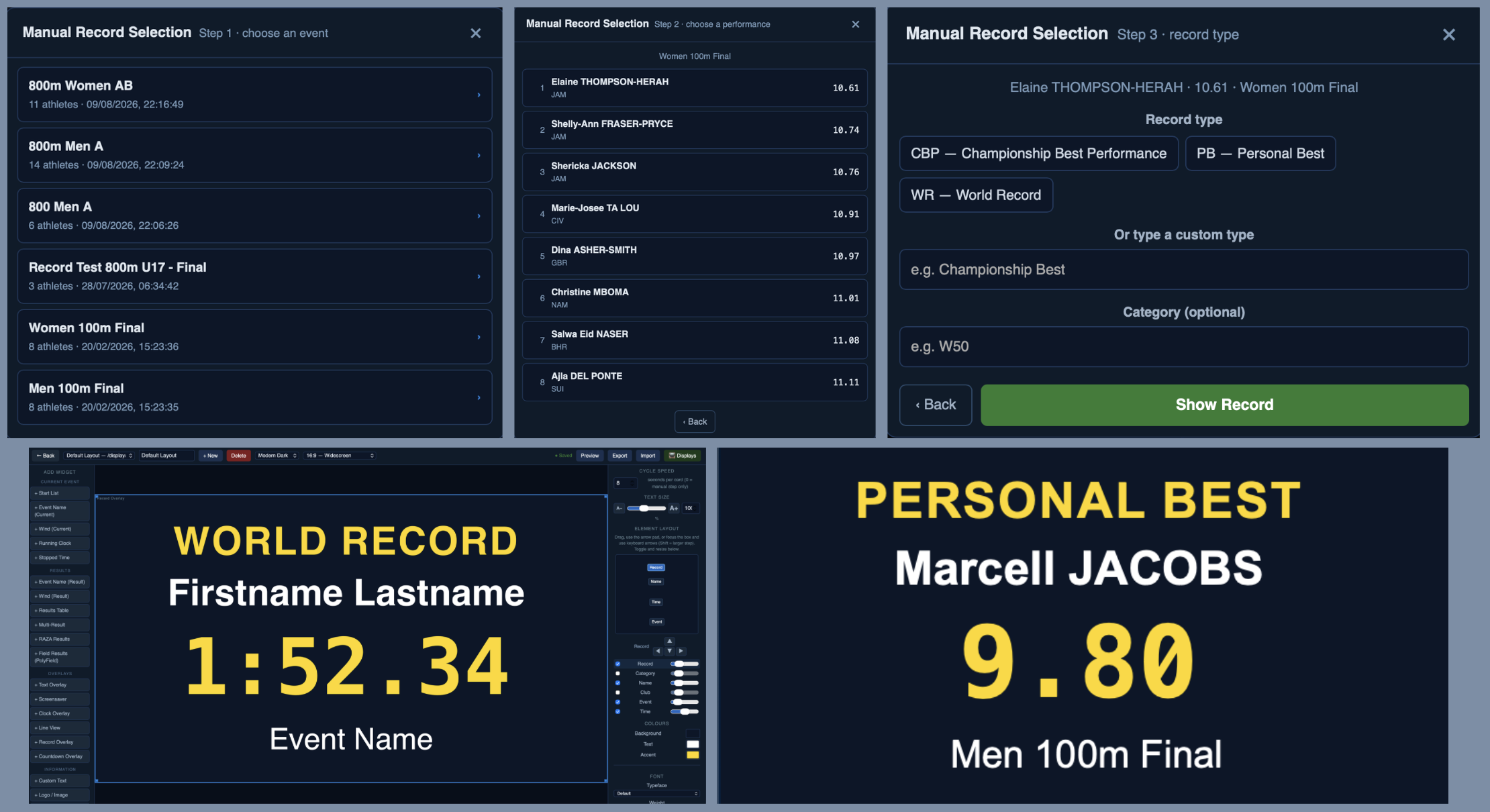
Flag an athlete’s record in FinishLynx (see setup), then press Records to show a celebratory card — athlete, category, event, club and time. Prev / Next step through multiple flagged athletes. Manual selection of an athlete from an existing LIF file and flagging them as a Record is also possible. Press Records then Manual Selection to start the 3 step flow. 1. Choose the race. 2. Choose the Performance. 3. Choose or input the Record type.
Line view
Sends the latest photo-finish image to displays with a line-view widget. The Rotation (s) control sets how often it alternates the photo with the result.
Text size & rotation modes
The default results text size is adjusted with the + and − buttons (layout widgets have their own Text Size in the Layout Builder).
The rotation mode determines how results with more than 8 competitors display:
| Mode | Behaviour |
|---|---|
| Scroll | Top 3 rows locked; rows 4+ scroll through the remaining competitors. |
| Page | Paginates: 1–8, then 9–16, etc. on rotation. |
| Scroll All | All 8 rows scroll through the competitors with no locked positions. |
The default athlete rotation speed is 5 seconds.
Browse & restore
Browse LIF lists previous results from the monitored folder so you can re-show any of them — useful for photo opportunities or re-displaying an earlier heat. Opening an old file in FinishLynx does not disturb the live display; only a genuine change to a result promotes it.
Connecting screens
Open http://<address>:3000/display on each screen; it auto-assigns a number. The Screen QR Codes page (from the Screens panel, or /screens-overview) shows a scannable code for every display page, so you can point a phone, tablet or TV browser at the right page quickly.
In the Screens panel you assign a saved layout to each screen independently, and remove screens that are no longer live. The desktop also has a built-in scoreboard preview that mirrors a real screen when you assign it a layout.
The Layout Builder
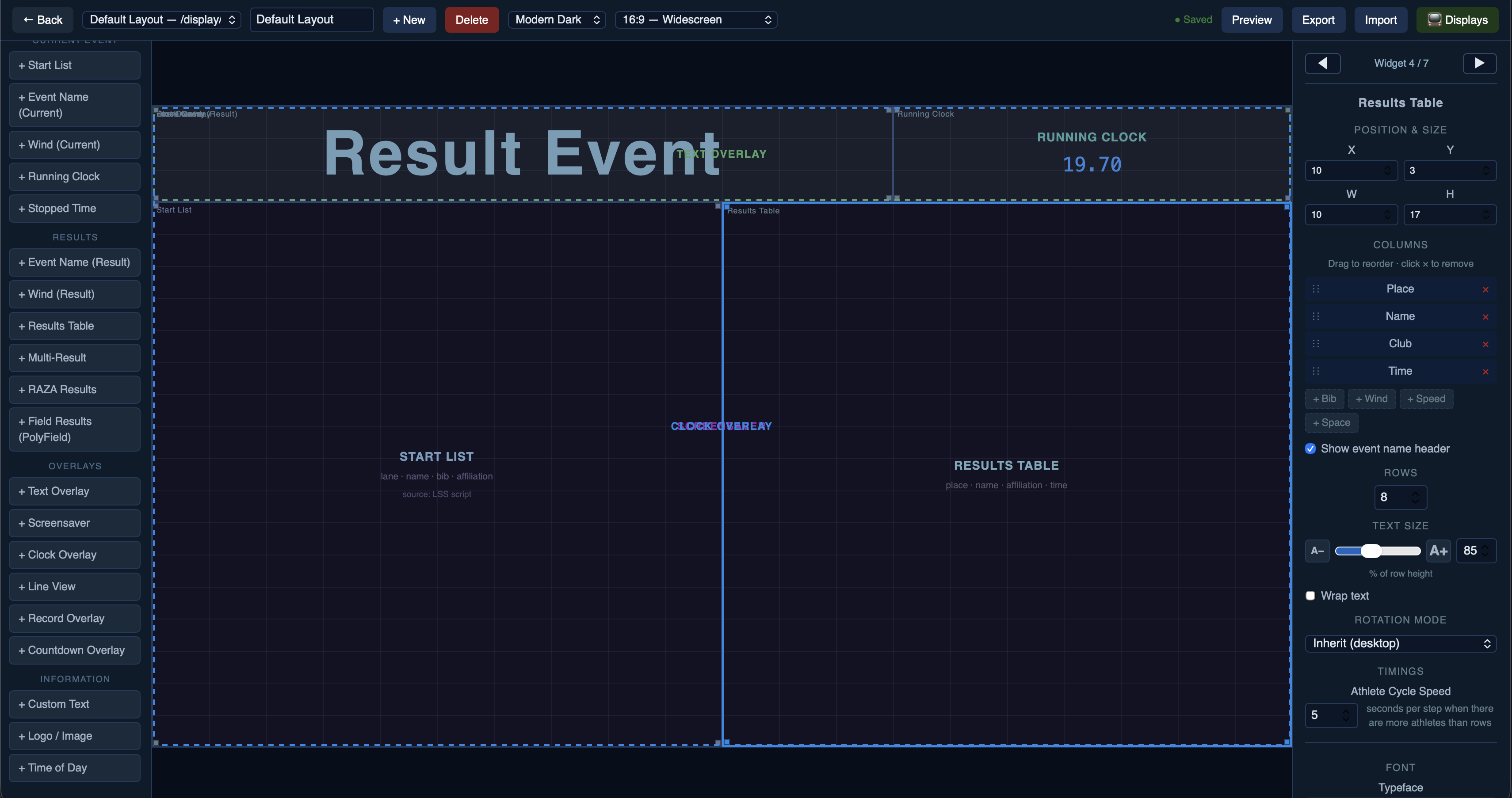
Open the Layout Builder to design custom scoreboard layouts from widgets. Each layout has an aspect ratio and a theme, and is built by dropping widgets onto a grid and positioning them.
- Add widgets from the palette on the left, grouped by Current Event, Results, Overlays and Information.
- Select a widget to edit its Properties on the right — position & size, columns, text size, font, colours and per-widget options.
- Overlapping widgets: use the ◀ Widgets ▶ navigator at the top of the Properties panel to cycle selection through every widget, including ones hidden behind others.
- Assign a layout to a screen (or the scoreboard preview) from the Screens panel.
Widget reference
| Widget | Shows |
|---|---|
| Results Table | The current result, with configurable columns, rotation and text size. |
| Multi-Result | A grid of several results (2×2 / 3×2), latest or rotating. |
| Start List | The start list for the current event. |
| Running Clock / Stopped Time | Live or frozen clock. |
| Event Name / Wind | Current or result event name and wind. |
| Custom Text / Logo / Time of Day | Static text, an image/logo, or the time. |
| RAZA / Field Results | Para-athletics WPA points, and PolyField field-event results. |
| Text / Screensaver / Line View / Clock overlays | The text banner, screensaver image/layout, photo finish, and full-screen clock (shown when the operator triggers the matching overlay). |
| Record Overlay | Celebratory record cards (drag-positioned elements, per-element size). |
| Countdown Overlay | Countdown to a target time with an editable caption. |
Combined Events points
For a combined-events (multi-event) competition, the results table can show an extra Combined Event column that scores each track performance against the official 2026 UKA/ESAA Combined Events Score Tables.
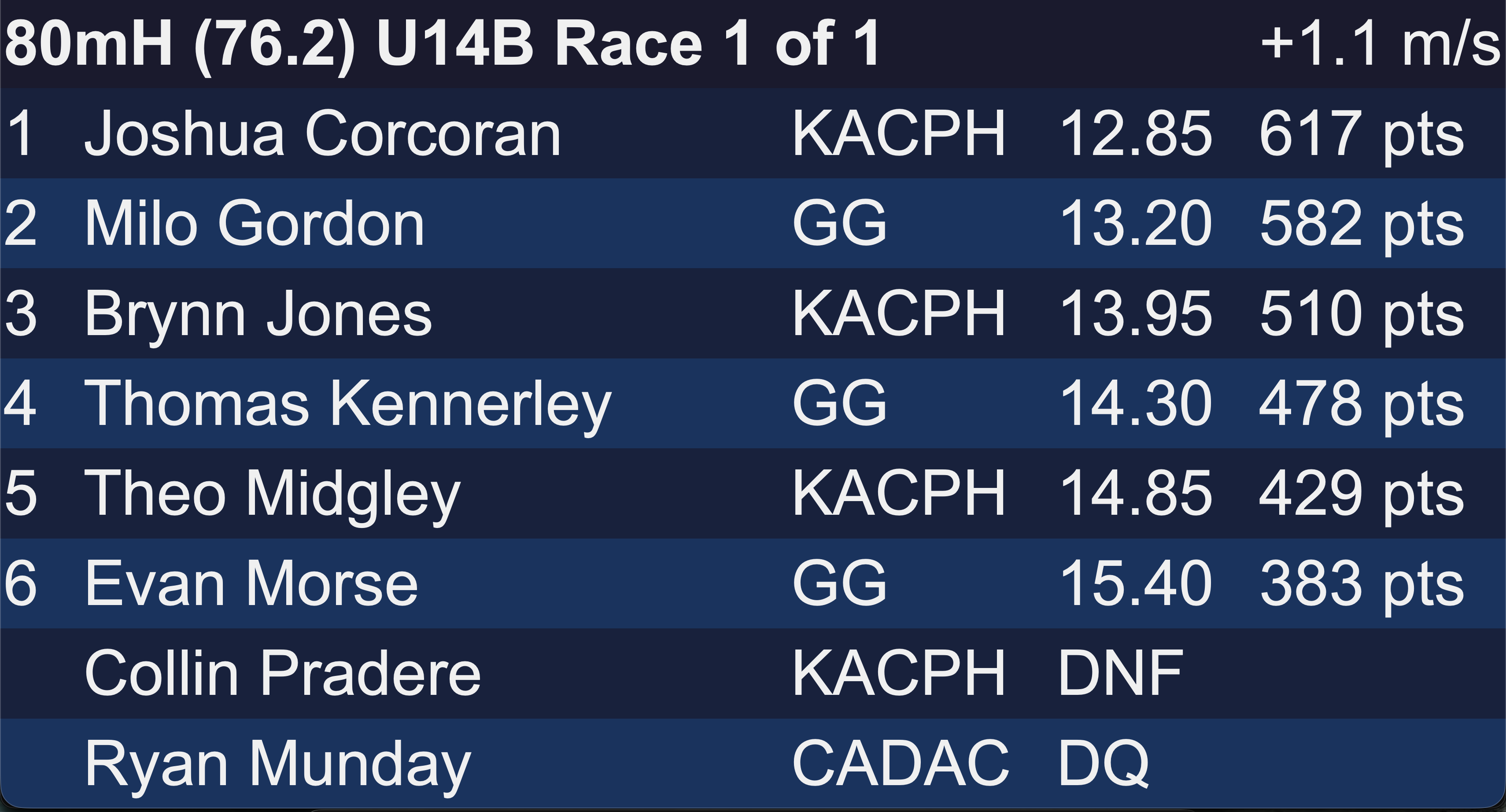
- Add the column — in the Layout Builder, select a Results Table or Multi-Result widget and add the Combined Event column (Properties → Columns). Tick Append “pts” to Combined Events points column to show
617 ptsrather than617. - Automatic by event & gender — the scoring table is chosen from the event name (e.g.
80mH (76.2) U14B), so every age group is covered — U13 to U20, Senior and Masters — with no per-athlete setup. - Track only — hurdles and flat races are scored; field events, relays and any event without a matching table are left blank.
- Non-finishers — DNS athletes are not shown; DNF and DQ show no score.
The time used for the lookup is the value displayed (already rounded to the timing precision), so the points match the official tables exactly.
Themes, bibs & club abbreviations
Themes set the default colours for all displays; you can create, duplicate and edit them. Bibs can be shown or hidden in the results view. Club abbreviations are managed centrally (edit the club list) and applied everywhere — add a new club or override a built-in abbreviation, and changes reach all displays within a few seconds.
Web views
The web views are best accessed through the web interface, using the access details at the top of the desktop app. Key pages:
| Page | URL |
|---|---|
| Scoreboard (activated layout) | /scoreboard |
| Display screen | /display |
| Multi-Result view | /results |
| Athlete kiosk | /athlete |
| Speed board | /speed |
| Running clock | /clock |
| RAZA rankings | /raza |
| Screen QR codes | /screens-overview |
Multi-Result view
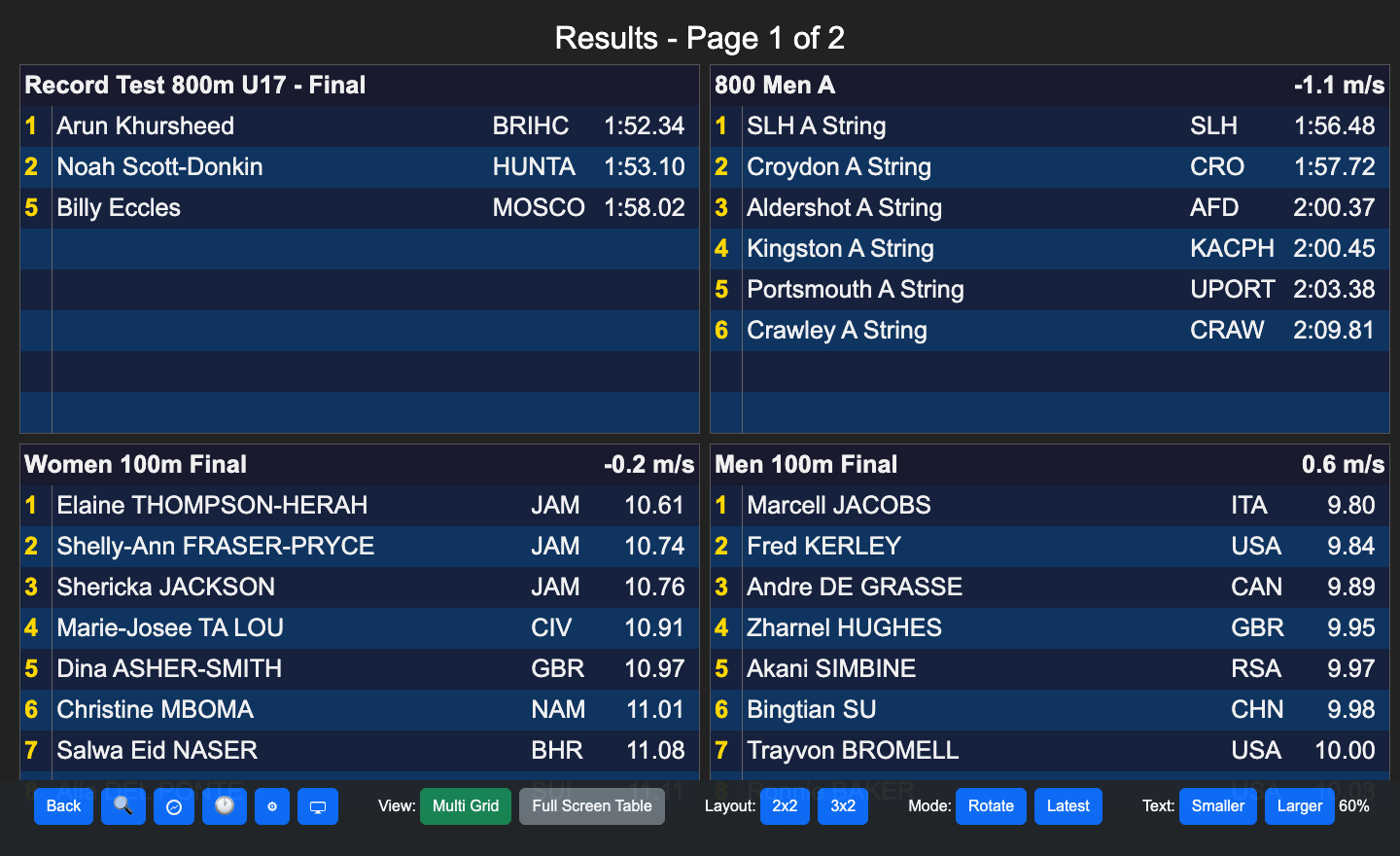
Displays results in a 2×2 or 3×2 matrix. Configure it to show the latest results or rotate through all available results; adapt the text size; and use full-screen mode to hide the toolbar (any mouse movement pops it back up). Results paginate, with the current page shown at the top. The search icon opens the athlete kiosk.
Athlete kiosk (self-service)
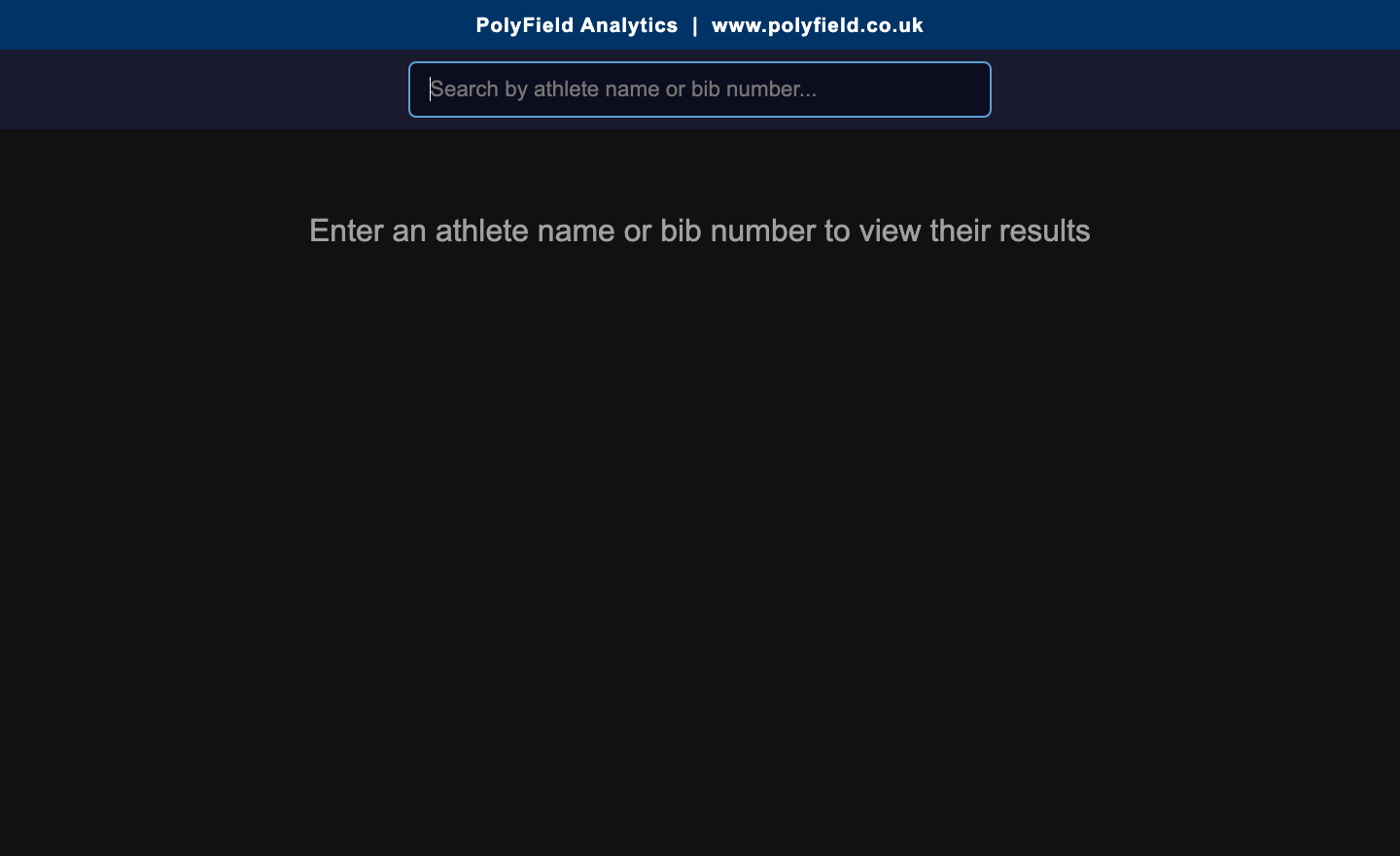
Open <IP-ADDRESS>:3000/athlete. An athlete searches by name or bib number; clicking a name shows all their performances in the current results directory. Clicking a result card displays it full-screen for photo opportunities. Reset clears the search; the back button returns to the search field.
FinishLynx & TimeTronics setup
- Scoreboard scripts — use the supplied
polyfield.lss,polyfield-wind.lssandpolyfield-backup.lssscripts so FinishLynx sends the live running clock, wind, start lists and results to PolyField Track. See Scoreboard setup below for how to configure each output. - Records — flag an athlete’s record in the FinishLynx User 3 field (e.g.
PBorW50 WR). Record codes are expanded to full titles from the club list. - Line view — export your photo-finish images (JPG) into the monitored results folder; the Line View button enables once they appear.
- Results — save your LIF as normal; PolyField only displays saved results.
Scoreboard setup (FinishLynx)
PolyField Track receives the running clock, start lists, live results and wind over a single UDP feed on port 5001. FinishLynx sends this through its Scoreboard outputs (Options → Scoreboard). Set up the outputs below — each is a Network (UDP) scoreboard pointed at the computer running PolyField Track.
Settings common to every output:
| Setting | Value |
|---|---|
| Serial Port | Network (UDP) |
| Port | 5001 |
| IP Address | the IP of the computer running PolyField Track |
| Code Set | Single Byte |
| Results | Auto · Paging on |
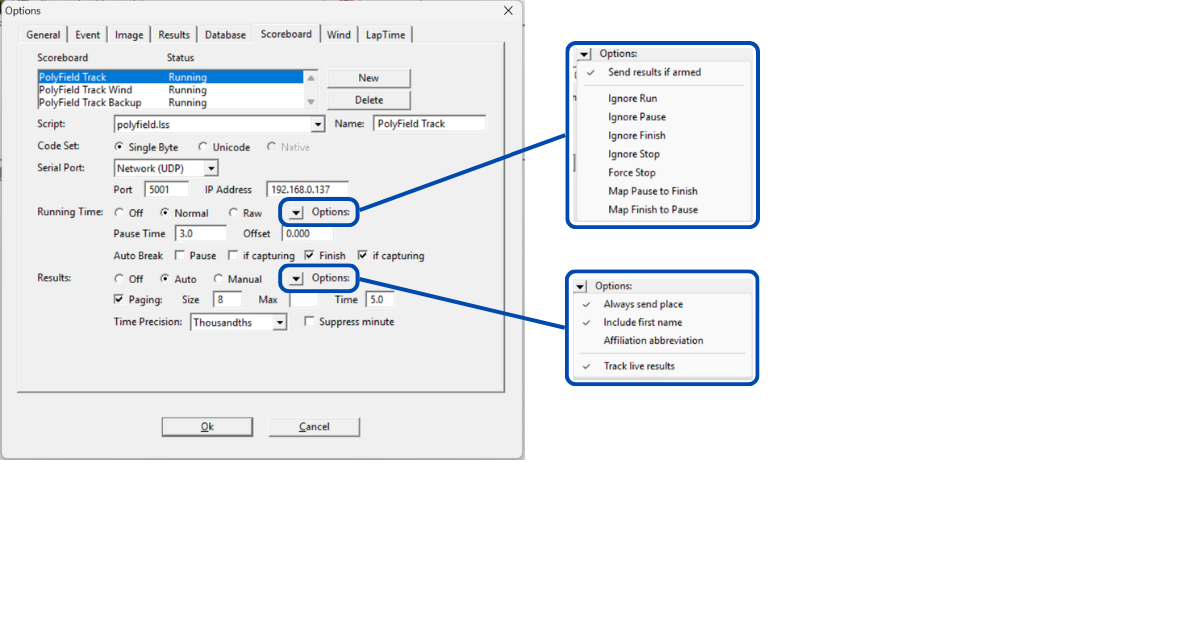
1. Main output — polyfield.lss
The primary feed: running clock, start lists and live results.
- Script:
polyfield.lss· Name: PolyField Track - Running Time: Normal
- Running Time → Options: Send results if armed ✓
- Auto Break: Finish ✓ (with if capturing ✓)
- Results → Options: Always send place ✓ · Include first name ✓ · Track live results ✓ (leave Affiliation abbreviation off — PolyField Track expands club names from its own club list)
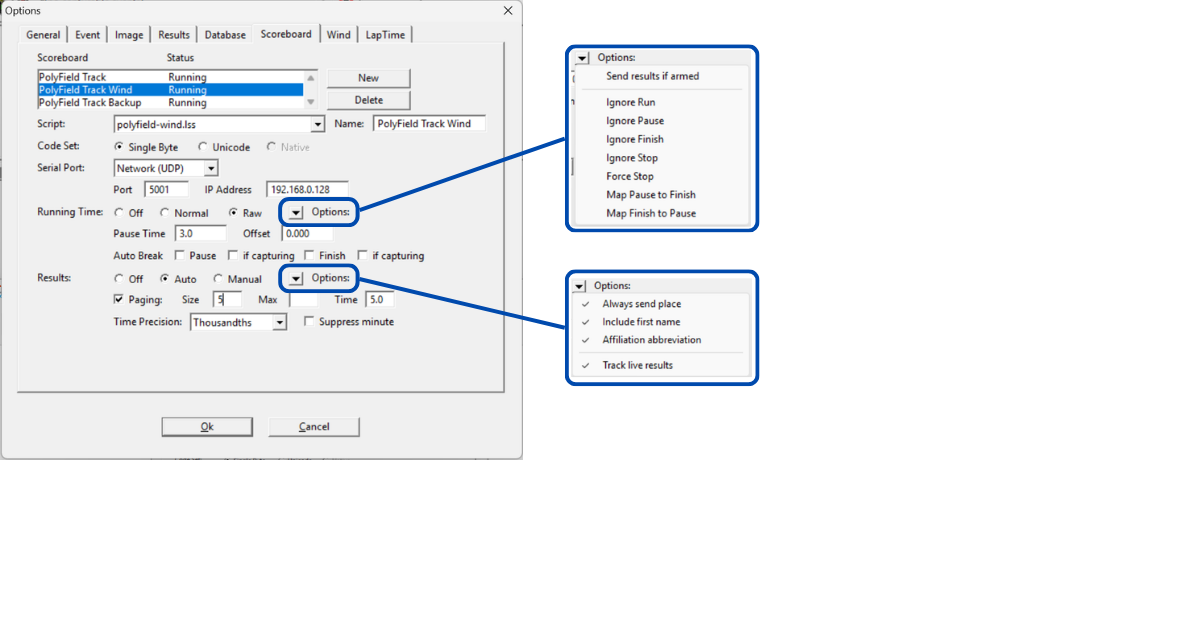
2. Wind output — polyfield-wind.lss
A dedicated output for wind readings.
- Script:
polyfield-wind.lss· Name: PolyField Track Wind - Running Time: Raw — wind fires on every beam break; Raw mode passes each reading straight through (PolyField Track ignores the “no data” values)
- Running Time → Options: Send results if armed off
- Results → Options: Always send place ✓ · Include first name ✓ · Affiliation abbreviation ✓ · Track live results ✓
3. Backup output — polyfield-backup.lss (recommended)
A second, independent copy of the start list for resilience. FinishLynx sends each start list only once when the event loads, so a single dropped UDP packet can leave a screen blank. This backup output sends an identical start list from a separate scoreboard, so if one packet is lost the other still arrives. Point it at the same PolyField Track computer.
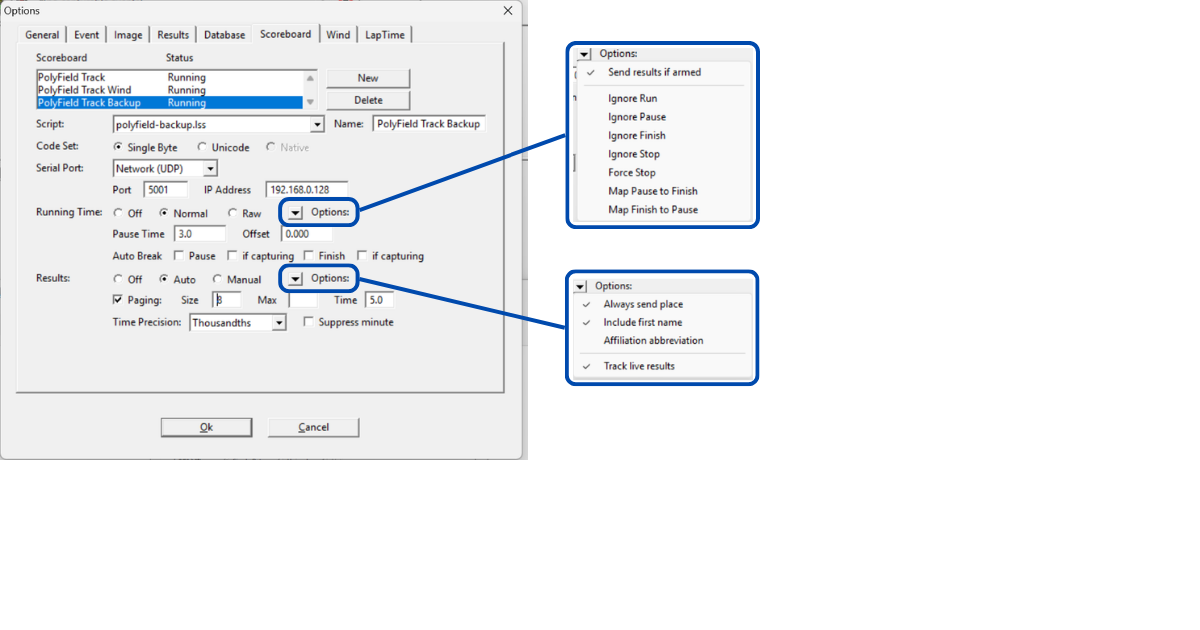
- Script:
polyfield-backup.lss· Name: PolyField Track Backup - Running Time: Normal
- Running Time → Options: Send results if armed ✓
- Results → Options: Always send place ✓ · Include first name ✓ · Track live results ✓
All three outputs can run at once and send to the same IP and port — PolyField Track sorts them out by content.
Networking
- The app serves on port 3000 and advertises itself as
track.localon the network, so displays can usehttp://track.local:3000without knowing the IP. - On computers with more than one network card (common on Windows), pick the correct network adapter in the connection panel so the right address is advertised.
- All devices must be on the same network as the host computer.
Troubleshooting
| Symptom | Check |
|---|---|
| Line View button is greyed out | No photo-finish JPGs in the monitored folder yet — check your FinishLynx image export path. |
| Records shows nothing | The athlete must be flagged in FinishLynx User 3 or via manual selection, and the layout must contain a Record Overlay widget. |
| A display shows “waiting for layout” | Assign a layout to that screen in the Screens panel. |
| An old result reappeared | Opening a file in FinishLynx no longer promotes it; only a real change does. Use Browse LIF to re-show past results intentionally. |
| Displays can’t connect | Confirm the same network, port 3000 reachable, and (multi-card PCs) the right network adapter is selected. |
Download & support
Download the latest version from www.polyfield.co.uk or the releases page. Support: support@polyfield.co.uk.